
Start here
Your first shop in five minutes
SmartCart works best when you use the same account everywhere. Your lists, catalogue activity, preferences and active plan are held against that account.
- 1
Open SmartCart
Use the browser app, or open SmartCart on your Android phone or iPhone.
- 2
Create or access your account
Sign in with email and password, Google, or Apple where offered. Use the same method on your other devices.
- 3
Find a product
Open Search, type a familiar grocery name such as milk, bread or bananas, then choose a catalogue result.
- 4
Add it to your list
Choose the quantity and select Add or Add & Compare Prices. Repeat for the rest of your shop.
- 5
Compare before you go
Open Shopping List to review a supermarket total, or tap Compare on an item to see its available store prices.
Account & sign in
One account across web and mobile
Create an account
- Open SmartCart and choose Create account.
- Enter your full name, email and password, or choose an available Google or Apple button.
- Complete any verification or provider screen.
- Return to SmartCart. Your default shopping list is created for your account.
Sign in on another device
- Open SmartCart on the second device.
- Choose the same sign-in method and account.
- Allow a moment for your list and plan to load.
Search & catalogue
Find the right product
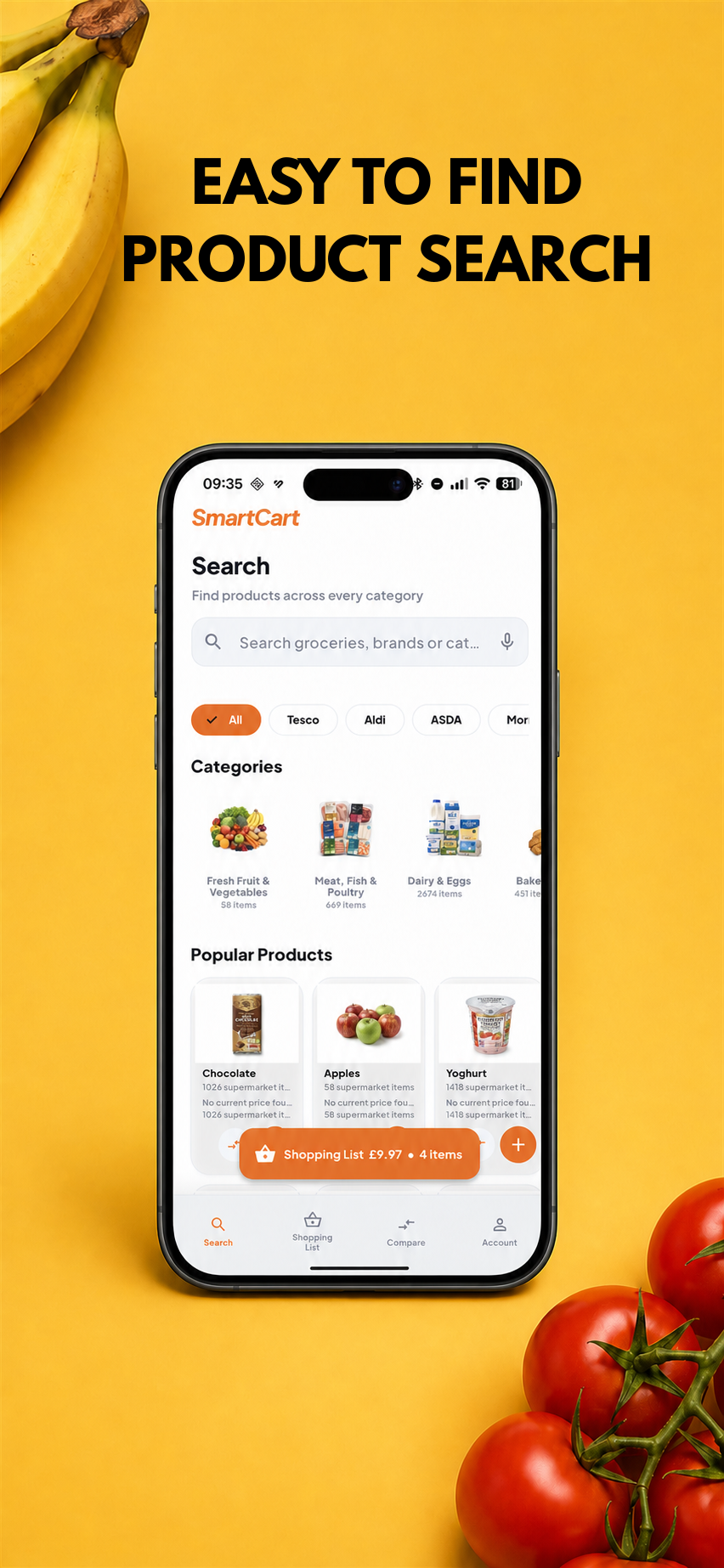
Search by name
- Open Search and type a product name.
- Use an autocomplete suggestion or review the result cards.
- Apply a category or supermarket filter if you need to narrow the results.
- Open a catalogue item to see the available products grouped by supermarket.
- Choose a quantity and add the item to your shopping list.
Popular Products
Before you search, SmartCart shows popular catalogue items. Products you successfully search and open can influence your own list of recent popular choices, kept to a compact set of up to 18 items.
Voice search
If the microphone button is available, tap it, allow microphone access and say the grocery item. Voice availability depends on your browser or device.
Shopping lists
Plan and manage your shop
Add an item
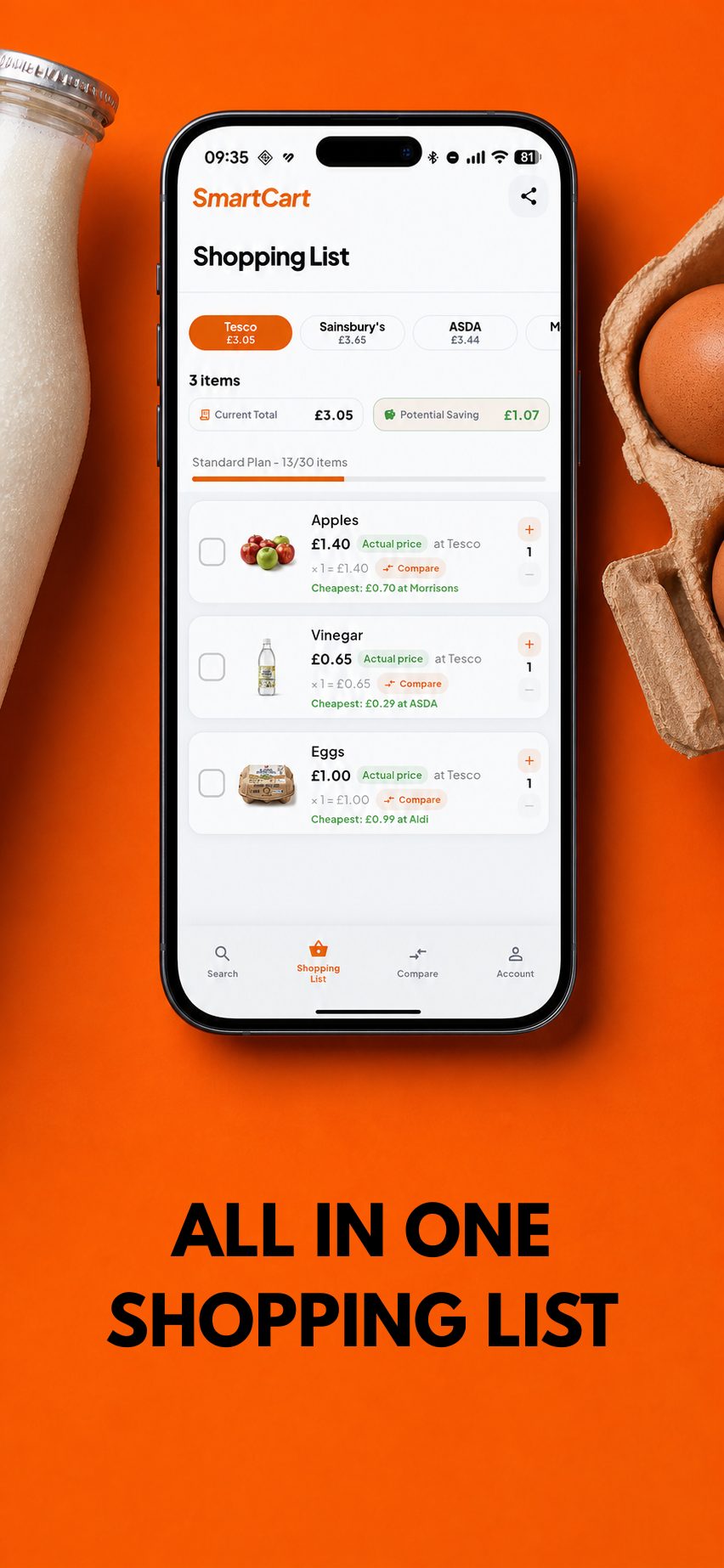
- Open Shopping List and tap the add button.
- Search for a known catalogue item. You can also enter a valid custom grocery item.
- Check the category and set the quantity.
- Select Add & Compare Prices.
Work with an item
- Use + and - to change quantity.
- Mark an item picked to move it out of the active basket.
- Use Compare to open its detailed supermarket prices.
- Remove an item when you no longer need it.
Choose a supermarket and understand the total
The supermarket selector controls the price shown for every active item. Current Total is calculated from prices available for that selected supermarket and the quantities in your list. If SmartCart has no matching current price for an item, it shows Not available at [supermarket] instead of substituting a price from another store.
Filter & sort
Filter picked status, price availability or category. Sort by added order and other choices shown in the filter sheet.
Share
Use the share control to send a text version of the list, including quantities, picked status and known prices.
Plan limits
The usage indicator shows how many items your current plan allows in each list.
| Plan | Maximum lists | Items per list |
|---|---|---|
| Free | 1 | 5 |
| Standard | 2 | 30 |
| Premium | Unlimited | Unlimited |
Compare prices
See the price picture clearly
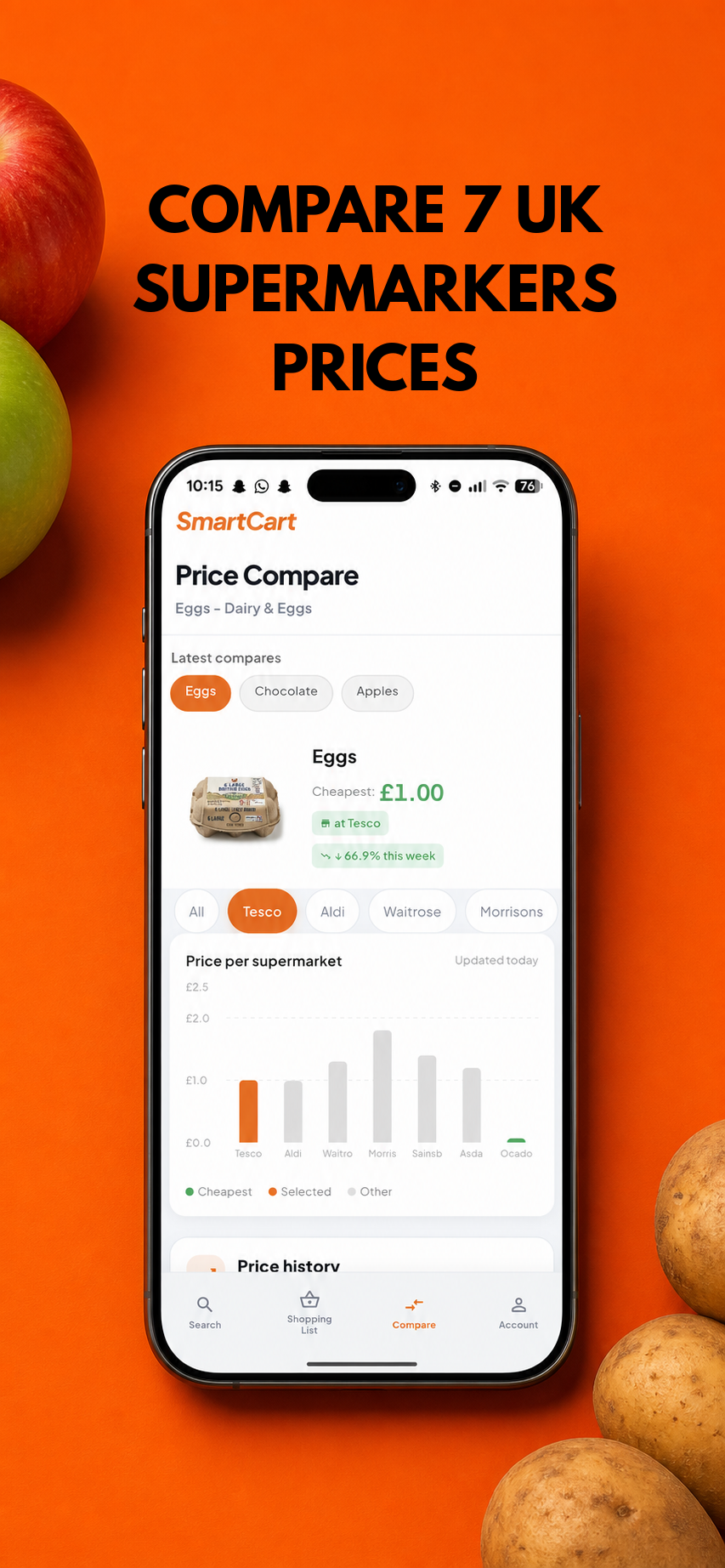
- Open Compare, or tap Compare beside an item in your list.
- Choose an item from Latest compares when more than one is available.
- Use the supermarket chips to focus on a store.
- Review the price-per-supermarket chart and price detail.
- Use the trend section to put the current price in context.
Why a store may be missing
A store appears only when SmartCart has a suitable current database match. Missing or unavailable does not mean the store never sells the item; it means SmartCart cannot present a reliable current match at that moment.
Price history
Put today's price in context
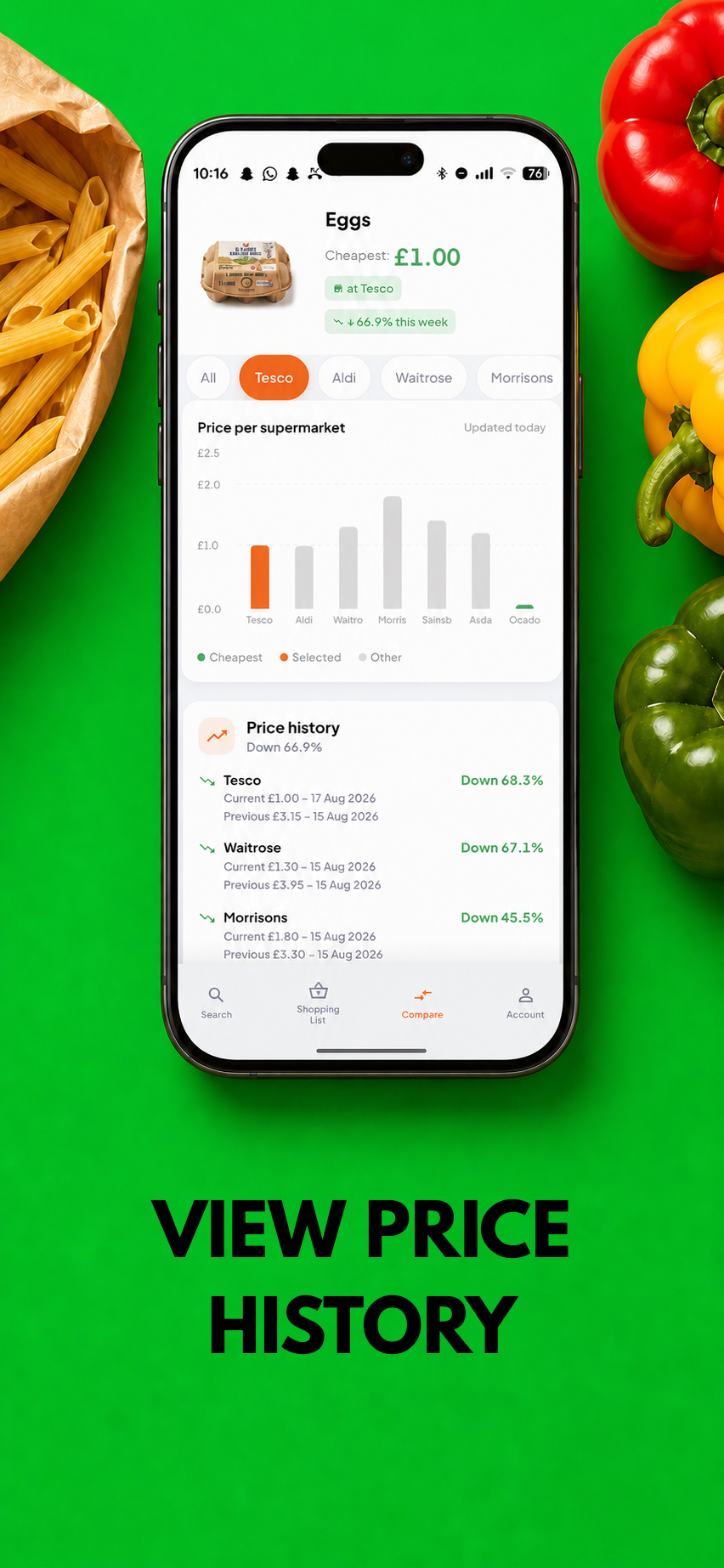
SmartCart combines available current prices with historical records held in its database. Depending on the item and plan, you may see:
- weekly price points;
- whether the observed price moved up or down;
- the best current price;
- a breakdown of current store prices;
- price-drop information when enough history exists.
If the history area is empty, add a catalogue-linked item to your list and check again after SmartCart has matching price observations.
Plans & subscriptions
Choose the space and insight you need
1 list, 5 items per list and basic comparison/history.
2 lists, 30 items per list, full comparison/history and saved shopping history.
Unlimited lists and items, with advanced price tracking and trends.
Buy or restore a plan
- On the web, open Account → Plan & subscription, choose Standard or Premium, and complete the secure Stripe checkout.
- On Android, complete the Google Play purchase flow. On iPhone or iPad, complete the App Store purchase flow.
- If you already purchased, use Refresh plan on web or Restore purchases in the mobile plan screen.
- Sign in with the same SmartCart account. Your verified active plan should follow the account.
Settings & your data
Make SmartCart work your way
Price display
Choose the cheapest, average or most expensive matching price for each supermarket. This affects which matching price SmartCart displays, not the underlying records.
Profile & password
Edit your display name, change your password where supported, review your email and sign out.
Notifications
Manage the available price-drop, weekly summary, deal and shopping-reminder preferences. Delivery depends on device permissions and feature availability.
Export
Use Data & Export to export available price or shopping-list history as a CSV file. File handling varies by platform.
Feedback & support
Send feedback or create a support ticket from Account Settings, or use the website support page.
Delete your account
Use the deletion request in Account Settings or follow the steps on Delete my data. Deletion is permanent after verification and processing.
Web vs mobile
Use SmartCart where it suits you
| Feature | Browser | Android / iPhone |
|---|---|---|
| Sign in and account sync | Yes | Yes |
| Search and catalogue browsing | Yes | Yes |
| Shopping lists and price comparison | Yes | Yes |
| Price history | Yes, subject to plan/data | Yes, subject to plan/data |
| Buy a paid subscription | Through Stripe | Through the relevant app store |
| Voice search, sharing and downloads | Depends on browser permissions | Uses device capabilities |
Troubleshooting
Quick fixes for common problems
Google or Apple sign-in does not return to SmartCart
- Finish the provider screen in the same browser window.
- Allow cookies and redirects for SmartCart and the sign-in provider.
- Return to getsmartcart.co.uk/app/ and try once more.
- If it persists, try a private window or clear SmartCart site data, then contact support with the browser and device name.
My list is empty on another device
Confirm you are signed into the same SmartCart account and used the same login method. Refresh the screen while connected to the internet. If you have two accounts, contact support before adding duplicate data.
A product has no price at my chosen supermarket
SmartCart shows unavailable when it has no reliable current matching row for that item and store. Try opening Compare to review other stores, check again later, or choose a more specific catalogue item.
My paid plan is not showing on the web
Sign into the same account used for the subscription. On web, choose Refresh plan after Stripe checkout completes. On mobile, use Restore purchases. Provider verification can take a short time.
The browser app looks out of date
Close other SmartCart tabs, then perform a hard refresh with Ctrl+F5 on Windows or Cmd+Shift+R on Mac. Reopen the browser app.
Voice search, sharing or export does not work
Check browser or device permissions. Some browsers cannot provide every mobile capability. You can always type a search, copy list information manually, or use the mobile app for device-native sharing.
Frequently asked questions
Useful answers
Where do SmartCart prices come from?
SmartCart reads current and historical price records held in its Supabase database. The browser and mobile apps do not scrape supermarket websites.
Does SmartCart guarantee the checkout price?
No. Prices can change and matches can differ by product size, branch, delivery area or offer terms. Treat SmartCart as planning information and confirm before buying.
Can I use one account on several devices?
Yes. Sign in with the same SmartCart account. Your account-backed lists, preferences and verified subscription status can then sync.
Why do I see fewer stores for one product?
SmartCart only displays stores with a suitable available match for that item. Coverage can vary by product and by the freshness of database records.
Can I purchase Premium on the website?
Yes. Open the web app, go to Account and choose a plan. Stripe handles the secure checkout and SmartCart updates the plan after payment confirmation.
How do I get personal help?
Email smartcart@cetia-solutions.co.uk or visit SmartCart Support. Include your device, browser/app version, what you expected, what happened and a screenshot if useful. Never send your password.
Ready to shop?
Put the guide into practice.
Open SmartCart, add your first item and compare the prices available to you.